To scan your handwritten signature on iPhone, write it on plain paper and capture it with SignDocs' signature camera guide. Crop around the writing, choose the extraction result that keeps the strokes clear, and save it to your signature library. You can then reuse it inside the app when signing a PDF.
This is different from scanning a full document: the goal is to isolate the handwriting and remove the surrounding paper. Signature Scan: Sign PDFs, also called SignDocs, requires iOS 26 or iPadOS 26 or later.
Prepare the paper and lighting
Use plain, unlined paper and leave space around the signature. Black, red, or dark blue ink is supported by the app's extraction workflow. Write at a comfortable size; a very small signature gives the camera less detail to capture.
Place the paper on a flat surface in even light. Avoid a strong shadow from your hand or phone. If the paper has folds, a textured background, or writing very close to the signature, move to a clean part of the sheet before taking the picture.
Capture the signature
- Open the signature scanning option in SignDocs.
- Hold your iPhone so that the handwritten signature sits inside the camera guide.
- Keep the phone steady and the writing in focus, then capture the image.
- Crop around the complete signature. Keep every intended ink stroke, including a long underline or the dot on a letter.
- Continue to the extraction previews and compare the available results.
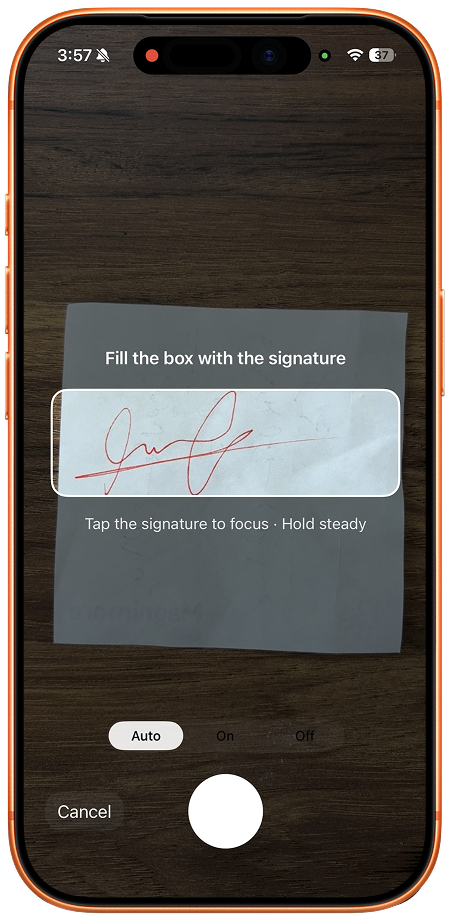
If the image is blurred, take another capture before continuing. Trying to rescue an out-of-focus image by choosing a stronger cleanup result can leave you with a less faithful signature.
Choose Clean, Balanced, or Bold
SignDocs offers Clean, Balanced, and Bold variants so you can compare paper removal with stroke detail. Look at the thinnest parts of your handwriting, not just the heaviest lines. The best choice is the one that preserves the signature clearly on the document you will sign.
A faded stroke or a remaining paper shadow is a reason to compare another preview or recapture the image. See how to remove the paper background from a scanned signature for a more detailed checklist.
Fix a faint or incomplete signature
If a thin stroke looks faint or disappears, check the original capture before choosing a stronger-looking cleanup result. A preview cannot restore ink detail that was blurred, cropped out, or never visible in the photo.
- Look at the captured image and confirm that the signature is in focus and every intended stroke is inside the frame. If it is blurred, take a new photo.
- Put the paper flat in even light. Move your hand and phone so they do not cast a shadow over the writing, then hold the iPhone steady while capturing.
- Crop around the complete signature. Leave enough room for the ends of long strokes, dots, and flourishes; do not trim close to a faint mark.
- Compare Clean, Balanced, and Bold at the size you expect to use. Inspect the thinnest parts of the handwriting in each preview and choose the one that keeps them visible while removing enough of the paper background.
- If the same stroke is missing in every preview, recapture the signature or write a fresh one on plain paper with supported ink. Changing the preview cannot recreate detail that the source image does not contain.
Before sharing, place the saved signature on a PDF and check the exported copy at a readable size. If you only need to add a signature to a PDF and do not need to capture your handwriting from paper, Apple's built-in Markup signature tools may be enough.
Save it for the next PDF
Save the finished signature in the app's local signature library. Saved signatures can be reused, renamed, or deleted. Choose a name you can recognize if you keep more than one version.
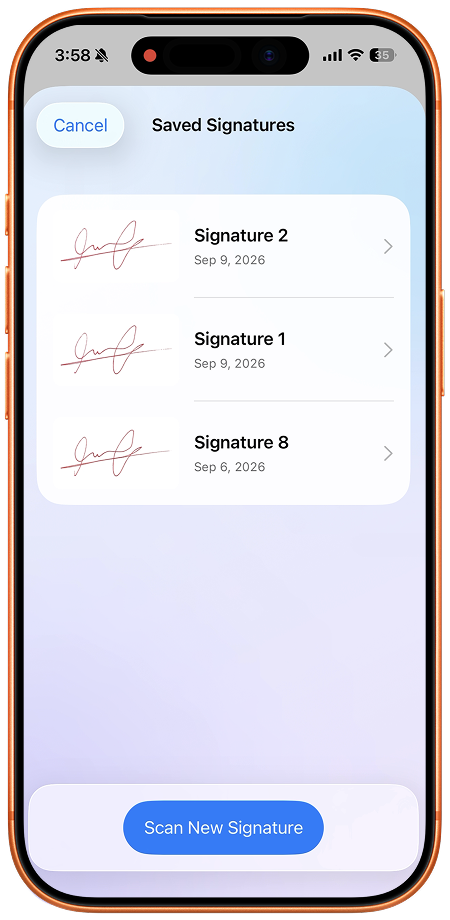
Saving a signature in this library is not a promise of a separate PNG export. This workflow prepares it for placement on PDFs inside SignDocs. To use the saved signature, open a PDF, select it, choose the correct page, then drag and pinch it into place. The PDF signing guide walks through that process.
Keep control of the result
Signature capture, cropping, and background removal run on your device. The app does not upload your signature for processing. When you share a signed PDF, however, the destination and recipient receive that copy under their own practices.
Keep access to your device protected and use signatures only when you are authorized to do so. Review a signature on the final exported PDF before sending it: a good-looking capture still needs the right size and position on the page.

Your paper. Your signature.
One signed PDF.
Scan a document, capture your handwriting, and save a signed copy with Signature Scan: Sign PDFs — also known as SignDocs.
 On-device document processing. iPhone and iPad, version 26 or later.
Sources & editorial notes
- Signature Scan: Sign PDFs — App Store product description
- Apple iPhone User Guide: Fill out forms, sign documents, and create signatures
Prepared by the app’s developer using product documentation, supplied screenshots, and the sources above, with AI assistance for drafting and editing. Screenshots show SignDocs with English interface labels; system menus can vary by OS version or language. This guide does not claim independent hands-on testing.