A signature photographed on paper can leave a white rectangle when placed over another document. To remove that paper background in SignDocs, capture the handwriting with the signature camera, crop around it, and compare the Clean, Balanced, and Bold extraction previews. Choose the result that removes the paper while keeping your actual strokes readable.
The cleaned result is used for signing PDFs in the app. This guide does not assume that SignDocs exports a separate transparent PNG. Signature Scan: Sign PDFs (SignDocs) requires iOS 26 or iPadOS 26 or later.
Start with a clear capture
Background removal works from the image you supply. Use plain paper, supported dark ink such as black, red, or dark blue, and even lighting. Keep the camera in focus and avoid a shadow across the writing.
If you photographed the entire page, crop closely enough that the signature is the main subject. Do not cut off thin finishing strokes or a long underline. The signature capture guide covers the preparation and camera steps.
Compare the extraction previews
- Capture your signature in SignDocs using the dedicated signature camera.
- Adjust the crop to include the full signature and remove unnecessary paper.
- Open the available extraction results.
- Compare Clean, Balanced, and Bold rather than selecting a variant by its name alone.
- Check both the paper around the writing and the fine strokes inside it.
- Save the version that preserves your signature clearly, or retake the image if none is suitable.
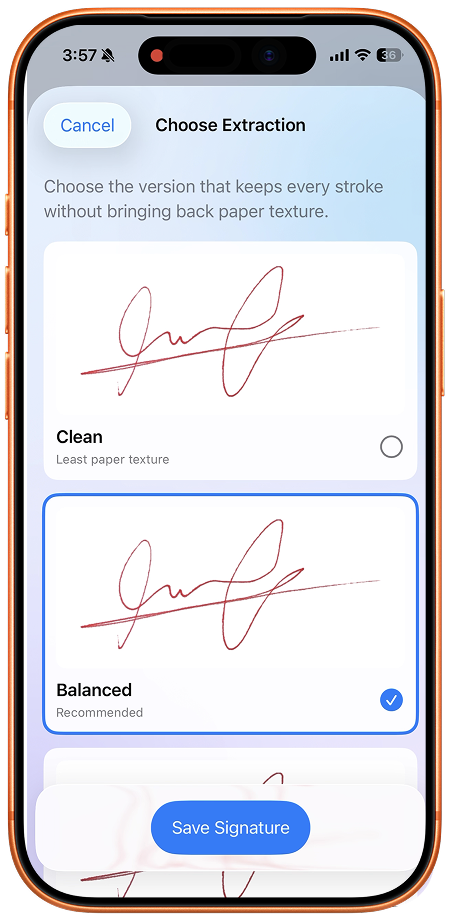
The goal is a readable, faithful signature on the destination PDF. A result that removes more background is not automatically better if it also removes part of the writing.
Fix a shadow or missing stroke
If a paper shadow remains, move to more even lighting and take another capture. Avoid shining a light from directly behind the phone if that casts its shadow onto the page.
If a fine stroke disappears, inspect another variant. If the source writing is faint or the photo is blurred, improve the capture first. Rewriting the signature clearly on another sheet can be more useful than repeating cleanup on the same poor image.
For ink that looks different from your original, check the capture under neutral light and compare it with the paper. SignDocs is designed to preserve supported ink colors, but you should still judge the actual result before saving.
Check the signature on the PDF
Open your document, place the saved signature, and inspect the boundary around it. It should sit naturally over the page rather than cover text with a white block. Resize it to a sensible width and make sure that the writing remains readable.
Use the guide to signing a PDF on iPhone for the placement and save steps. SignDocs saves a separate signed copy, so check that exported file as well as the editor preview.
Understand what cleanup changes
Removing the paper background changes the signature image, not the text or layout of the PDF you are signing. It does not verify a person's identity or create a certificate-based digital signature.
Cropping and background removal happen on your iPhone or iPad. You do not need to upload your signature to a website to perform these steps. Sharing the finished PDF is a separate action that gives the chosen destination a copy of the signed document.

Your paper. Your signature.
One signed PDF.
Scan a document, capture your handwriting, and save a signed copy with Signature Scan: Sign PDFs — also known as SignDocs.
 On-device document processing. iPhone and iPad, version 26 or later.
Sources & editorial notes
Prepared by the app’s developer using product documentation, supplied screenshots, and the sources above, with AI assistance for drafting and editing. Screenshots show SignDocs with English interface labels; system menus can vary by OS version or language. This guide does not claim independent hands-on testing.