You can sign a PDF offline in SignDocs when the app, document, and any required purchase access are already available on your iPhone. Document scanning, signature capture, background removal, and PDF creation run on the device. Sending the completed file by email or retrieving a cloud-only document is a separate step that may need internet access.
Signature Scan: Sign PDFs (SignDocs) requires iOS 26 or iPadOS 26 or later. Its offline processing does not mean that installing the app, restoring a purchase, downloading an attachment, or every sharing destination works offline.
Prepare before going offline
Open the PDF on your phone while you still have a connection. A filename visible in Files is not enough if its contents are stored only in the cloud. Make sure you can actually view the document and its required pages locally.
Install and open SignDocs ahead of time. If you rely on Pro access, complete any purchase or restore steps while connected. The app has a limited free document allowance; offline operation is not a promise of unlimited free exports.
Have a signature saved in the app, or keep a pen and plain paper available to capture your handwriting. For the capture steps, use the handwritten signature guide.
Sign the local document
- Open the PDF from Files in SignDocs.
- Select a signature already saved on the device, or capture a new one from paper.
- If capturing, crop the writing and choose a clear Clean, Balanced, or Bold result.
- Go to the PDF page that needs your signature.
- Drag and pinch the signature into position without covering other text.
- Save a new signed copy and review it on your phone.
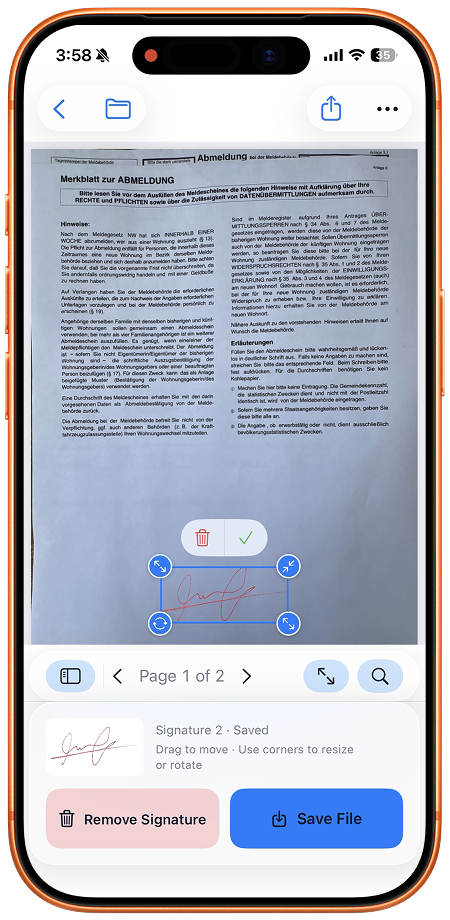
For a longer walkthrough of page selection, placement, and checking the final file, see how to sign a PDF without printing.
Separate processing from sharing
The work of creating the signed PDF happens locally. Delivery depends on where you send it. Mail and messaging services generally need a connection to transmit a message. A cloud storage destination may need to connect before it can upload the file.
You can keep a local copy and send it once you are online. If you choose another sharing method, check that method's requirements rather than assuming that the phone's internet status describes every connection it can make.
Read how to save and share a signed PDF before treating the job as complete. A file saved on the phone and a file received by someone else are two different outcomes.
What if the PDF will not open?
Check that the source is actually downloaded. A cloud placeholder or email attachment that has not finished downloading can prevent you from opening it while offline. Reconnect to retrieve it rather than repeatedly trying to sign a file that is not present.
If the document opens but exporting is unavailable, check the app's allowance or purchase access when you have a connection. Do not assume that an account-free app bypasses Apple's purchase system.
Keep the privacy claim precise
SignDocs does not upload documents or signatures for processing. That describes the scanning and signing workflow. If you export a PDF to a third-party service, that service receives the copy you chose to share and handles it under its own practices.
An embedded handwriting image is also different from a certificate-based signature service. If the recipient requires another process, follow their instructions even if your PDF can be edited locally.

Your paper. Your signature.
One signed PDF.
Scan a document, capture your handwriting, and save a signed copy with Signature Scan: Sign PDFs — also known as SignDocs.
 On-device document processing. iPhone and iPad, version 26 or later.
Sources & editorial notes
- Signature Scan: Sign PDFs — App Store product description
- Apple iPhone User Guide: Fill out and sign PDF forms in Preview
Prepared by the app’s developer using product documentation, supplied screenshots, and the sources above, with AI assistance for drafting and editing. Screenshots show SignDocs with English interface labels; system menus can vary by OS version or language. This guide does not claim independent hands-on testing.