SignDocs supports capturing red handwriting from paper while preserving supported ink color. Use plain paper, capture the whole signature, then compare Clean, Balanced and Bold before saving. Check both the red strokes and the surrounding paper; a clean background alone does not establish that the signature is ready.
Capture and compare
Write with red ink on unlined paper and leave space around the writing. Place it flat in even light. In the signature camera, keep the entire signature in focus, capture it and crop without clipping dots or long strokes. Compare the three extraction previews against the paper, then save the version that retains the writing clearly.
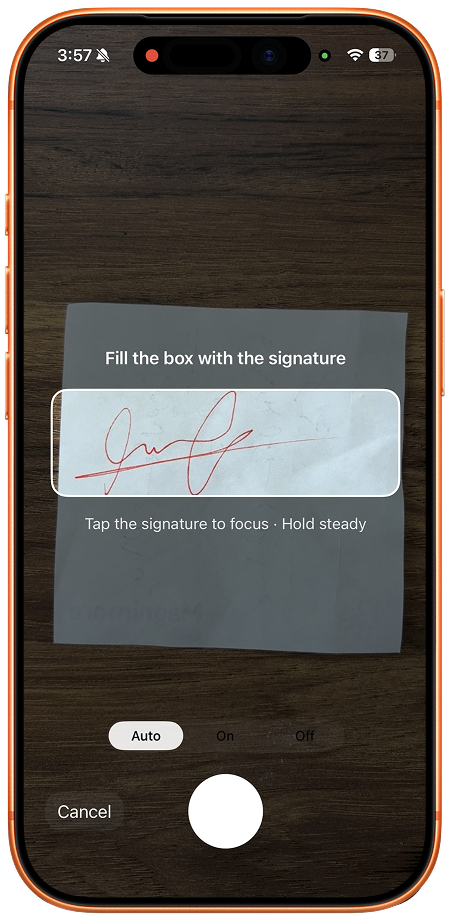
A color check before saving
For example, inspect a red loop, its crossing point and the empty space inside it separately. If the empty space still contains a reddish patch, check whether that patch was ink or a mark on the paper. If a real red stroke is missing in every preview, recapture it; do not select a result merely because its remaining lines look darker. Cleanup is not a way to recolor a black signature red.
Use the saved red signature
Give the saved signature a recognizable name such as “Red — paper capture” so you can distinguish it from a black version. Open a PDF from Files, select the page and this saved signature, then drag and pinch to place it. Save a separate signed copy and reopen it from Recent Docs. Check the red writing at its final size against nearby document text before sharing the exact file.
Capture guide · Background cleanup
Limits and alternatives
Signature Scan: Sign PDFs (SignDocs) requires iOS/iPadOS 26 or later. Free exports are limited. Capture and cleanup run on device without a processing upload or account; installation, purchases/restores, cloud retrieval and external sharing have separate connection requirements. The saved handwriting is an image for PDF signing, not a certificate signature or a documented standalone PNG export.
If you only need to add a signature and do not need the red handwriting from paper, Apple’s Preview on iOS 26 may be sufficient. See Apple’s version-specific signing instructions below; installing another app is optional. SignDocs is useful here for capturing and reusing the actual red pen strokes.
Apple: sign PDF forms in iOS 26 · Signature Scan: Sign PDFs — App Store

Your paper. Your signature.
One signed PDF.
Scan a document, capture your handwriting, and save a signed copy with Signature Scan: Sign PDFs — also known as SignDocs.
 On-device document processing. iPhone and iPad, version 26 or later.
Sources & editorial notes
Prepared by the app’s developer using product documentation, supplied screenshots, and the sources above, with AI assistance for drafting and editing. Screenshots show SignDocs with English interface labels; system menus can vary by OS version or language. This guide does not claim independent hands-on testing.