You can sign a PDF on iPhone without printing it. Open the PDF, add a signature, position it on the right page, and save a signed copy. Apple's Preview app supports signing PDF forms. If you want to capture the signature you normally write on paper, Signature Scan: Sign PDFs (SignDocs) can photograph that handwriting, remove the paper background, and place it on your PDF.
The SignDocs workflow below requires iOS 26 or later, or iPadOS 26 or later on iPad. It adds an image of your handwritten signature. It does not provide identity verification or a certificate-based digital signature.
Before you start
Save the PDF somewhere you can open it in Files. If it is an email attachment, download it first. Check which pages need a signature and whether the recipient also expects information you must fill in using another tool. Signing a PDF does not automatically complete its form fields.
You will also need either a signature already saved in SignDocs or a piece of plain paper and a pen to capture one.
Sign with your handwriting in SignDocs
- Open SignDocs and choose the option to open an existing PDF from Files.
- Select your document. Check its title and page count so you do not sign the wrong version.
- Choose a saved signature, or capture one from paper. For a new signature, use the camera guide, crop closely, and compare the Clean, Balanced, and Bold results.
- Choose the PDF page that contains the signature line.
- Drag the signature onto the line. Pinch to resize it so it fits without covering the surrounding text.
- Review the page at a readable size, then use Save File to create a new signed PDF.
- Open the saved copy and check the signature before sending it.
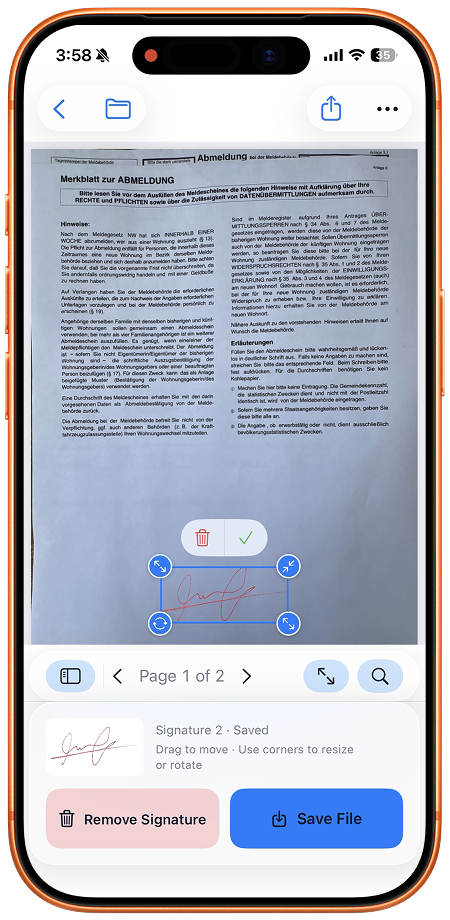
Need help with the capture step? Follow the handwritten signature scanning guide. The aim is to preserve your actual ink strokes rather than draw a different version with your finger.
Use Apple's built-in option
If the PDF needs a typed name, date, or other answers as well as a signature, complete those entries too. A signature image does not fill the rest of the form. Preview on iOS 26 provides built-in form-filling and signing tools; you can finish there when they meet your needs.
Fill the text fields in Preview
- Open the PDF form in Preview. If you need an untouched original, use the actions menu beside the filename and choose Duplicate before editing.
- Select the Form Filling control.
- Select a field and type the required information. Check any AutoFill suggestion before using it so the form contains the details you intend to send.
- Use Add when you need to insert a text form box or a signature. Apple's linked guide explains these controls for iOS 26.
Check each required entry at a readable size. Typing a name into one field does not complete a separate signature line, and adding a signature does not complete empty text fields.
Save the completed form before choosing the signing step
In Preview, the Back control saves the file and returns to the main menu. The actions menu beside the filename also lets you rename it. Give a working copy a recognizable name so you can distinguish it from the blank original.
If you want to use handwriting captured from paper, open the completed PDF from Files in SignDocs and check that the entered text is visible before placing your saved signature. The SignDocs steps above cover the signature image; they are not instructions for editing PDF form fields. If the required text is still missing, return to the form-filling step before making another signed copy.
If you used Preview's signature tool and the finished PDF already meets the recipient's needs, review and share that file. There is no need to add a second signature through another app. Menu positions can vary by OS version, so use Apple's version-specific instructions alongside this guide.
Check the final PDF
Review the exported file, not just the editing screen. Look at the signature's size, page placement, and readability. Make sure that no required page is missing and that the PDF opens again after saving.
SignDocs saves a new signed copy while preserving the original PDF. Give the output a clear name so that an unsigned original is not attached by mistake. The save and share guide covers that last step.
What if the recipient requires a digital signature?
An embedded handwritten signature and a certificate-based digital signature are different things. If a portal or recipient specifies a certificate, identity check, or a particular signing service, use their required process. Do not assume that placing a signature image satisfies it.
For everyday paperwork where the recipient accepts a handwritten signature image, scanning the entire printed document is unnecessary: work from the original PDF and save a separate signed copy.

Your paper. Your signature.
One signed PDF.
Scan a document, capture your handwriting, and save a signed copy with Signature Scan: Sign PDFs — also known as SignDocs.
 On-device document processing. iPhone and iPad, version 26 or later.
Sources & editorial notes
- Signature Scan: Sign PDFs — App Store product description
- Apple iPhone User Guide (iOS 26): Fill out and sign PDF forms in Preview
- Apple iPhone User Guide (iOS 26): Save, rename, or move PDFs and images in Preview
Prepared by the app’s developer using product documentation, supplied screenshots, and the sources above, with AI assistance for drafting and editing. Screenshots show SignDocs with English interface labels; system menus can vary by OS version or language. This guide does not claim independent hands-on testing.