Move the paper away from direct light and change the light’s angle before capturing again. A bright reflection that hides letters needs a new capture; cropping or perspective correction cannot recover the missing writing.
Compare two positions
Keep the sheet flat. Move it away from an overhead lamp or use indirect daylight. Move the lamp to the side, then check the camera preview. Keep the phone roughly parallel to the page so all four corners remain visible. If the reflection stays over text, change the paper’s position again before capturing.
For example, if a white patch covers the middle of a printed line, note the words on either side. After moving the light and recapturing, read that entire line in the preview. If the words are still unreadable, do not accept the page just because its edges look straight.
Capture and verify
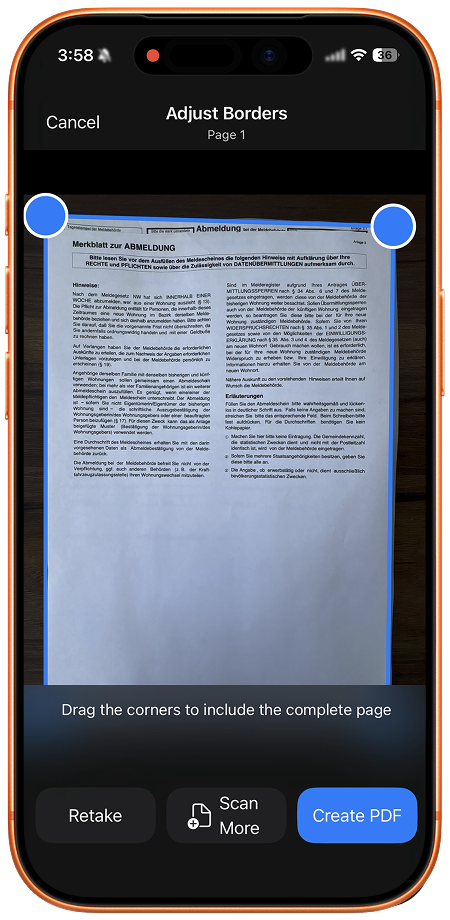
Open document scanning in SignDocs. Use automatic capture when the preview is clear, or manual capture once the reflection has moved. Adjust crop corners without cutting off text. For multiple sheets, inspect each capture before creating the PDF. Open the saved PDF and check the previously obscured line, all four edges and the page count.
Multipage scanning · Capture a signature
Options and limits
Apple’s built-in Notes scanner may be sufficient for paper-to-PDF scanning: open a note, choose the attachment control and Scan Documents, capture the page, adjust corners and save. Follow Apple’s linked instructions for your version. SignDocs is useful when you also want to capture handwriting from paper, reuse that signature and save a separate signed PDF copy.
SignDocs requires iOS/iPadOS 26 or later. Free exports are limited. Scanning and PDF creation happen on device without a processing upload or account. Installation, purchases/restores, cloud retrieval and external sharing have separate connection requirements. This captures paper pages; it does not merge existing PDFs or recognize text with OCR.

Your paper. Your signature.
One signed PDF.
Scan a document, capture your handwriting, and save a signed copy with Signature Scan: Sign PDFs — also known as SignDocs.
 On-device document processing. iPhone and iPad, version 26 or later.
Sources & editorial notes
Prepared by the app’s developer using product documentation, supplied screenshots, and the sources above, with AI assistance for drafting and editing. Screenshots show SignDocs with English interface labels; system menus can vary by OS version or language. This guide does not claim independent hands-on testing.