After signing a PDF in SignDocs, save a new signed copy, give it a recognizable name, and open that copy to check it before sharing. Then choose a compatible destination such as Mail, Messages, or AirDrop. Sending the original unsigned file by mistake is easy to avoid if you check the actual output rather than relying on its filename alone.
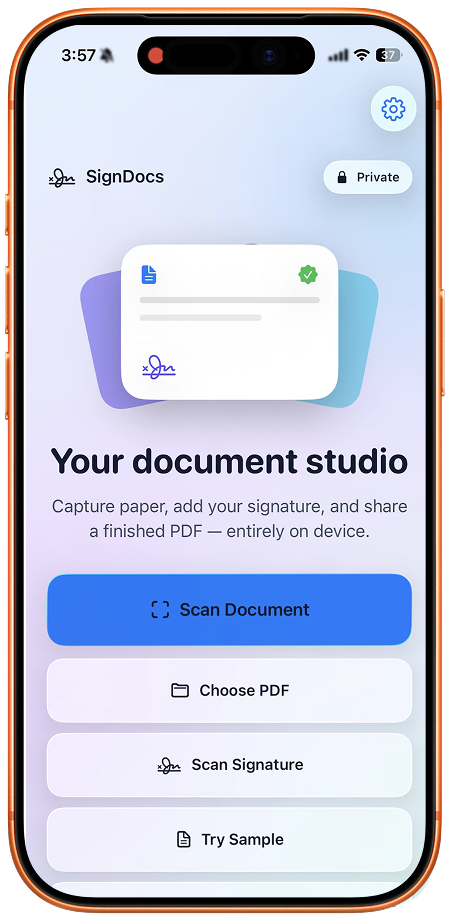
Signature Scan: Sign PDFs (SignDocs) requires iOS 26 or iPadOS 26 or later. It preserves the original PDF when you create a signed copy.
Save a recognizable copy
Finish placing your signature and choose Save File. Name the document so you can distinguish it from an unsigned original or an earlier draft. A descriptive filename is more useful than a string of nearly identical names.
For example, use a document name and date that you understand. Avoid including more personal information in the filename than is necessary: a recipient and their storage provider may see that name even before opening the PDF.
The PDF signing guide covers the editing steps before saving. If you started with paper, the multipage scanning guide helps you check that the PDF contains every required page.
Open the saved PDF before attaching it
Use Recent Docs to reopen the file you just saved. Review the signature at a readable size and check its page number, placement, and visibility. Look through the remaining pages for anything you might have missed.
For forms, check the typed name, date, and other required answers too. The form-filling steps in the signing guide explain how to complete those entries before sharing.
If you have both the original PDF and the new signed copy available, compare them carefully. A name containing “signed” does not prove that a signature is on the required page; looking at the exported document does.
Choose a sharing destination
- Select the saved document you intend to send.
- Open its sharing action.
- Choose Mail, Messages, AirDrop, or another compatible app from the available destinations.
- Check the recipient and the attachment before sending or completing the transfer.
- If delivery matters, confirm that the message or transfer completed successfully.
The exact destinations depend on which apps and services are available on your device. If you save the PDF in Files, Apple's sharing controls provide another way to send that saved file. Follow the current instructions for your iOS or iPadOS version.
A local save is not delivery
Scanning, signature extraction, and PDF creation take place on the device. Email, messaging, and cloud uploads have their own connection requirements. A message sitting in a queue is not the same as a delivered attachment.
If you are working without internet access, keep the signed copy locally and send it when your chosen service is available. The offline signing guide explains what to prepare and which steps can still need a connection.
Check privacy and document requirements
Sharing creates a copy outside the app. The recipient, receiving app, or storage service handles it under its own practices. Check the destination before sending a document containing private details.
SignDocs embeds an image of your handwritten signature. If the recipient requires a certificate-based digital signature, identity verification, or a specific portal, a shared PDF image signature may not meet that requirement. Ask what file or signing process they accept before relying on it.
A good final check is simple: open the exact attachment or saved output, confirm the right pages and signature, and make sure it goes to the intended recipient.

Your paper. Your signature.
One signed PDF.
Scan a document, capture your handwriting, and save a signed copy with Signature Scan: Sign PDFs — also known as SignDocs.
 On-device document processing. iPhone and iPad, version 26 or later.
Sources & editorial notes
- Signature Scan: Sign PDFs — App Store product description
- Apple iPhone User Guide: Share files and folders in Files
Prepared by the app’s developer using product documentation, supplied screenshots, and the sources above, with AI assistance for drafting and editing. Screenshots show SignDocs with English interface labels; system menus can vary by OS version or language. This guide does not claim independent hands-on testing.