To scan multiple pages into one PDF on iPhone, keep adding pages in the scanner before creating or saving the final document. In SignDocs, scan a page, use Scan More to capture the rest, then choose Create PDF when the whole document is ready. Review the pages before signing or sharing the result.
Apple's Notes scanner also supports adding more scans before saving. SignDocs is useful when you want the next step to be capturing your handwritten signature and placing it on the scanned PDF. Its app workflow requires iOS 26 or iPadOS 26 or later.
Prepare a stack that is easy to scan
Put the pages in their intended order. Flatten folded corners and choose a surface with enough contrast for the page edges to stand out. Use even light and keep fingers out of the page area.
Before you start, count the sheets and check whether any have writing on both sides. A scanner cannot include a reverse side you never capture. Decide whether the recipient needs blank backs, supporting pages, or just the pages with content.
Scan the pages in SignDocs
- Open the document scanning option in SignDocs.
- Capture the first page automatically, or use manual capture when you want control over the moment of capture.
- Check the page corners. Adjust the crop so the content and page edges are included without an unnecessary border.
- Use Scan More to add the next page.
- Repeat until every required page is captured.
- Compare the number of scans with your original stack, then choose Create PDF.
- Review the resulting document and save it on its own or continue to add a signature.
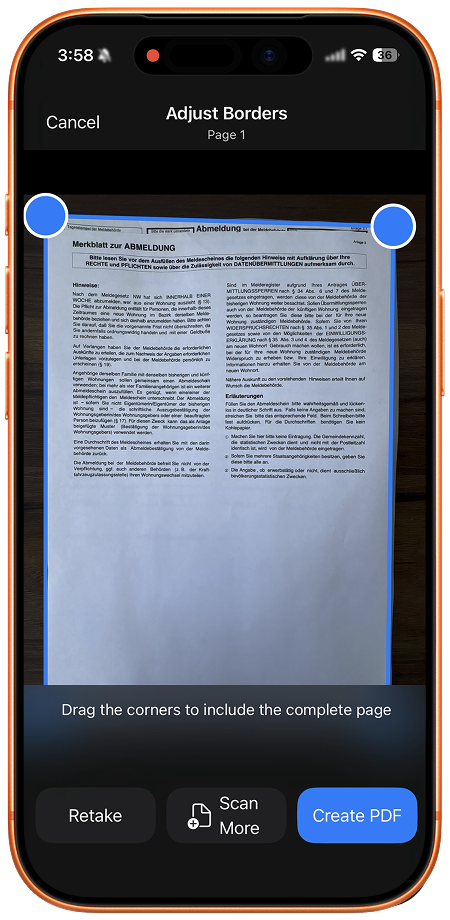
This captures paper pages into one PDF. It is not a claim that the app merges several existing PDF files or recognizes their text with OCR.
Use the built-in Notes scanner
In Notes, open or create a note, tap the attachment control, and choose Scan Documents. Position the page in view. In automatic mode the phone captures the page; manual capture lets you take it yourself and adjust its corners.
Add the remaining scans before completing the scan session. Apple's linked instructions explain the current controls. If you need a standalone PDF to send, check the resulting attachment and use the appropriate sharing or saving option for your OS version.
Review before you send
Look through every page at a readable size. Check for missing text near the crop, glare over a signature line, blur, and a page captured twice. Readability matters more than making every page edge look identical.
If a page is not usable, correct it before relying on the final PDF. The app's perspective correction can straighten a captured page, but it cannot recover text hidden by a finger or cut off outside the image.
Continue to a signed copy
When the scanned PDF is ready, choose the page that needs signing and place a saved signature or capture a new one from paper. Use the PDF signing guide to check placement and save a new signed copy.
Finally, give the document a clear name. The save and share guide explains how to check the actual exported file and choose its destination.

Your paper. Your signature.
One signed PDF.
Scan a document, capture your handwriting, and save a signed copy with Signature Scan: Sign PDFs — also known as SignDocs.
 On-device document processing. iPhone and iPad, version 26 or later.
Sources & editorial notes
- Signature Scan: Sign PDFs — App Store product description
- Apple Support: Scan documents on iPhone or iPad
Prepared by the app’s developer using product documentation, supplied screenshots, and the sources above, with AI assistance for drafting and editing. Screenshots show SignDocs with English interface labels; system menus can vary by OS version or language. This guide does not claim independent hands-on testing.