A scan stays with the app and save location used to create it. In Apple Notes, look in the note that contains the scan attachment. In Files, look in the folder chosen when saving. In SignDocs, reopen saved PDFs from Recent Docs. There is no single iPhone folder containing every app’s scans.
Start with the app you used
Think back to the capture: did you open a note, choose a folder in Files, or scan inside SignDocs? Start there before making another scan. A file saved inside an app is not necessarily exported to Files automatically.
For example, if you scanned a two-page project handout inside an existing meeting note, search for that note first. Searching Files for “handout.pdf” will not locate a scan that was never saved there as a separate file.
Find a scan in Apple Notes
- Open Notes and use its search field to look for a remembered note title or relevant words.
- Open likely notes and inspect their scan attachments. The scan belongs to the note selected or created before scanning.
- If you cannot remember the note, open More in the Notes list and choose View Attachments.
- Touch and hold the likely attachment thumbnail and choose Show in Note to return to its containing note.
- Open the scan and check the first page and total pages before using or sharing it.
These are Apple Notes attachment controls, not SignDocs buttons. A locked note exposes only its title in Notes search results, so an unsuccessful content search does not establish that the scan is absent. See Apple’s iOS 26 Notes search guidance.
Find a scan saved in Files
Open Files and check the location and folder you chose when saving. Browse lets you navigate locations and folders; Recents shows recently opened files rather than every scan ever created.
Use the Files search field with a remembered filename, folder name or document type. Check the search scope: a search limited to Recents or one location may miss a file elsewhere. Apple’s iOS 26 Files guide explains those scopes. Open each plausible result and compare its content with the paper rather than trusting a similar filename.
Reopen a SignDocs PDF
In SignDocs, use Recent Docs to reopen a saved PDF. Check the page count and visible content to distinguish it from another draft or a separate signed copy. If you exported a copy to Files, look in the destination you selected for that export as well.
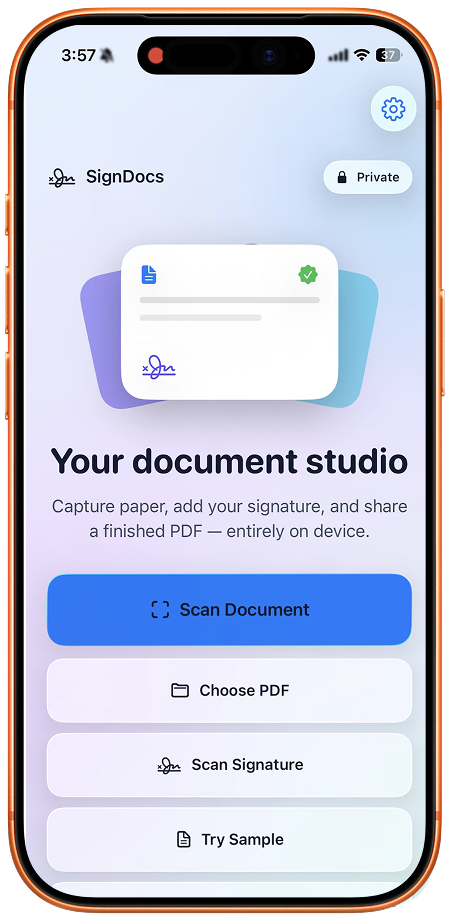
Finding a scan does not require installing SignDocs. Apple’s built-in scanners may already meet your needs; Apple explains scanning in Notes and Files. SignDocs is useful when you want to scan paper, capture and reuse handwriting, and save a separate signed PDF. It does not import your Notes library or recover deleted files.
Check the file you found
Before sending, confirm the document title on the page, the number of pages and any signature required. Keep an unsigned original distinguishable from a signed copy. The save and share guide explains how to inspect the exact attachment. For a cloud-only file, retrieve it while connected before following the offline preparation guide.
Signature Scan: Sign PDFs (SignDocs) requires iOS/iPadOS 26 or later. Free exports are limited. Scanning, signature extraction and PDF creation run on device without a processing upload or account. Installation, purchases/restores, cloud retrieval and external sharing have separate connection requirements. Notes search does not establish text recognition or content search in SignDocs.

Your paper. Your signature.
One signed PDF.
Scan a document, capture your handwriting, and save a signed copy with Signature Scan: Sign PDFs — also known as SignDocs.
 On-device document processing. iPhone and iPad, version 26 or later.
Sources & editorial notes
Prepared by the app’s developer using product documentation, supplied screenshots, and the sources above, with AI assistance for drafting and editing. Screenshots show SignDocs with English interface labels; system menus can vary by OS version or language. This guide does not claim independent hands-on testing.