To review two different handwritten signatures in one PDF, match each authorized handwriting selection to its own named line before saving. In SignDocs, select and place the first handwriting, then select the second handwriting separately. Inspect both in the separate flattened output. Two visible marks alone do not establish that the right writing is on each line.
Prepare a line-to-handwriting list
Use handwriting only with each person's permission for this document. Confirm that the recipient accepts handwritten image signatures. This workflow does not collect signatures remotely or verify anyone's identity.
Open the unchanged PDF from Files and check the title and page count. Download a cloud-only source while connected. Read the labels beside both signature lines and note the page, person and required date for each. If a label is ambiguous, clarify it before placing handwriting.
For example, a club equipment handover might have a line for Alex returning the equipment and another for Sam receiving it. Write down “returning: Alex” and “receiving: Sam”. The two lines may be on the same page; their order is not a reason to reuse the same signature.
Select each handwriting separately
- Choose Alex's authorized handwriting from the local library, or capture it from paper. Check the preview against the intended source before placing it.
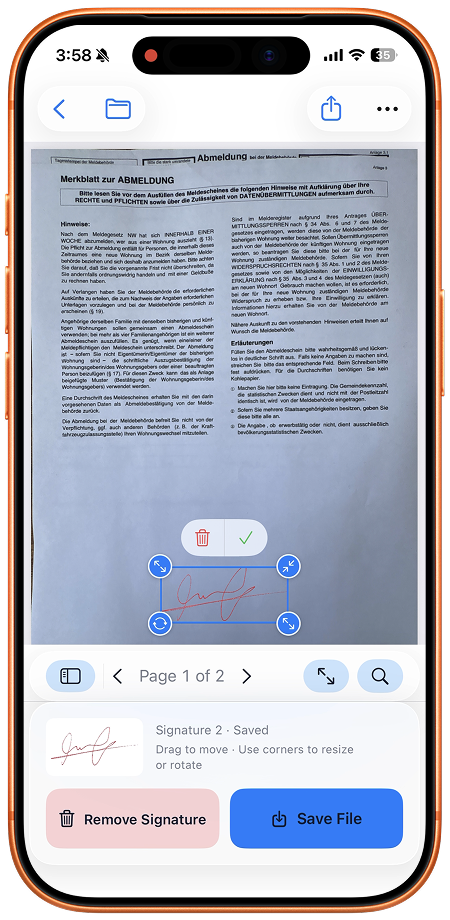
- Select the returning line's page. Move and resize the handwriting so it fits without covering the printed name or surrounding instructions.
- Select Sam's handwriting separately for the receiving line. Do not duplicate Alex's placement to stand in for Sam's signature.
- Add dates only where requested and check each value. A date beside one line does not complete the other line.
- Compare each placed handwriting with your list again. Correct session edits with undo/redo as needed and check for an extra unintended copy.
- Save a separate completed PDF, reopen it from Recent Docs and inspect both lines in the actual file before sharing.
If the same authorized handwriting is also required elsewhere, cross-page duplication needs matching page geometry. Otherwise place it manually. Even matching geometry does not prove that the destination line belongs to the same person. The initials and dates guide covers repeated placements.
Check the two-way match
Read the returning label and compare its handwriting with Alex's selected source. Then read the receiving label and compare it with Sam's source. Finally work backwards: locate every occurrence of Alex's handwriting and then every occurrence of Sam's. This catches a copied mark on the wrong line even when the document contains exactly two signatures.
Check that neither image hides a name or date. If you discover a mistake after export, reopen the unchanged original and make a newly reviewed copy; the saved output is flattened. Use the sharing checklist for the exact attachment.
Alternatives and limits
Apple’s Preview on iOS 26 can add a signature to a PDF. Its built-in instructions may meet your needs without another installation. SignDocs is useful when you want paper-captured handwriting and several initials, signature and date placements in one document workflow.
SignDocs requires iOS/iPadOS 26 or later. Free exports are limited. Processing is on device without an account or document upload for processing; installation, purchases/restores, cloud retrieval and external delivery have separate connection requirements. Handwriting is an image, not a certificate signature or identity verification. The saved output is flattened, so keep the unsigned original for future work. Review the exact attachment using the save and share guide.

Your paper. Your signature.
One signed PDF.
Scan a document, capture your handwriting, and save a signed copy with Signature Scan: Sign PDFs — also known as SignDocs.
 On-device document processing. iPhone and iPad, version 26 or later.
Sources & editorial notes
Prepared by the app’s developer using product documentation, supplied screenshots, and the sources above, with AI assistance for drafting and editing. Screenshots show SignDocs with English interface labels; system menus can vary by OS version or language. This guide does not claim independent hands-on testing.