Select your handwritten initials or signature in SignDocs, add dates where required, and review each placement page by page before saving a separate flattened PDF. You can move, resize or duplicate additions and undo or redo session edits. Duplicate across pages only when their geometry matches; otherwise place each item manually.
Prepare a placement list
Open the PDF from Files and check its name and page count. Retrieve a cloud-only file while connected. Read the document before placing anything: write down which pages need initials, a full signature or a date. Do not assume every page needs the same mark.
Choose the handwriting that belongs to this document. Initials and a full signature are different selections: capture the intended handwriting from paper if it is not in your local library. Inspect faint strokes before choosing Clean, Balanced or Bold extraction. The handwriting capture guide explains that preparation.
Place and check each item
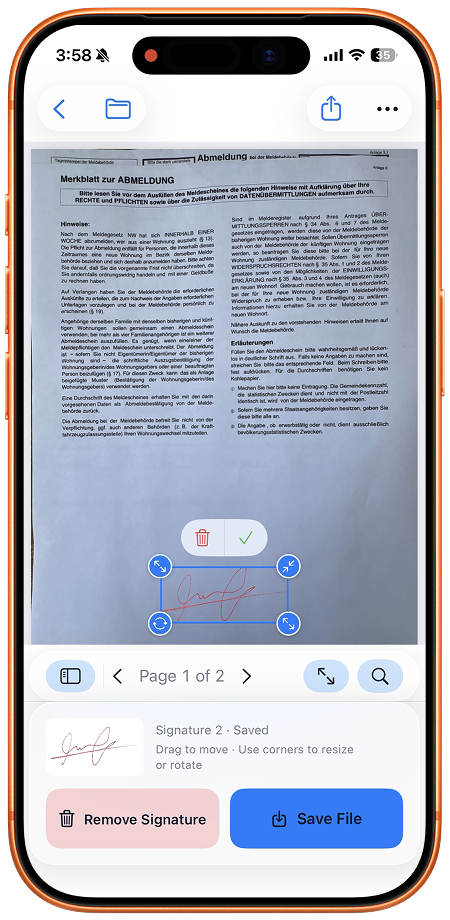
- Select the first page requiring initials. Choose the intended handwriting, then move and resize it beside the correct line without covering printed text.
- Add a date where the document asks for one. Read the date back and check the requested format; a well-positioned date can still be the wrong date.
- For another matching page, duplicate the placement only if page geometry matches. Inspect the destination even when duplication is available: the printed line may be in a different position.
- For a page with different dimensions or orientation, select that page and place the item manually. Adjust its size against the surrounding text.
- If an edit is wrong, use undo or redo for session edits, then inspect the resulting page again. Check that a correction did not leave an extra placement.
- Work through the placement list and save a separate completed copy. Reopen it from Recent Docs and check all required pages before sharing.
Try a three-page review
Suppose pages one and two need initials, while page three needs a full signature and date. Check the two initial locations separately. If the third page is landscape, place its signature manually instead of assuming the earlier position transfers. Compare the saved PDF against the list: two initials, one full signature and the requested date, with no unintended duplicates. This is an example checklist, not a claim that every form has these requirements.
Alternatives and limits
Apple’s Preview on iOS 26 can add a signature to a PDF. Its built-in instructions may meet your needs without another installation. SignDocs is useful when you want paper-captured handwriting and several initials, signature and date placements in one document workflow.
SignDocs requires iOS/iPadOS 26 or later. Free exports are limited. Processing is on device without an account or document upload for processing; installation, purchases/restores, cloud retrieval and external delivery have separate connection requirements. Handwriting is an image, not a certificate signature or identity verification. The saved output is flattened, so keep the unsigned original for future work. Review the exact attachment using the save and share guide.

Your paper. Your signature.
One signed PDF.
Scan a document, capture your handwriting, and save a signed copy with Signature Scan: Sign PDFs — also known as SignDocs.
 On-device document processing. iPhone and iPad, version 26 or later.
Sources & editorial notes
Prepared by the app’s developer using product documentation, supplied screenshots, and the sources above, with AI assistance for drafting and editing. Screenshots show SignDocs with English interface labels; system menus can vary by OS version or language. This guide does not claim independent hands-on testing.