If you notice a wrong answer after exporting a flattened PDF from SignDocs, reopen the unchanged original from Files and complete it again. Save a new, separately checked copy. Reopening the completed output in Recent Docs lets you inspect it; it does not restore its earlier editable fields or remove the answer embedded in its page.
Identify the file before correcting it
Keep the incorrect output available for comparison, but stop using it as the source. Open the original and inspect the exact page with the mistake. A filename containing “original” is not enough: the wrong answer should be absent from that page. If it is already printed there, obtain a clean source from the sender. Adding another answer over it would leave the earlier content underneath.
For an error still being made during the current editing session, undo and redo can help with session edits. Those controls do not establish a way to reverse a previously flattened export.
Make a replacement copy
- Write a short correction list from the bad output: page, question and intended answer. Include unaffected answers you must enter again.
- Retrieve the original while connected if it is cloud-only. Open that source from Files in SignDocs and verify its page count.
- Complete the supported fields again. For a flat or scanned source, place new multiline text or checkmarks in the blank areas and check their fit. The form guide explains the two kinds of page.
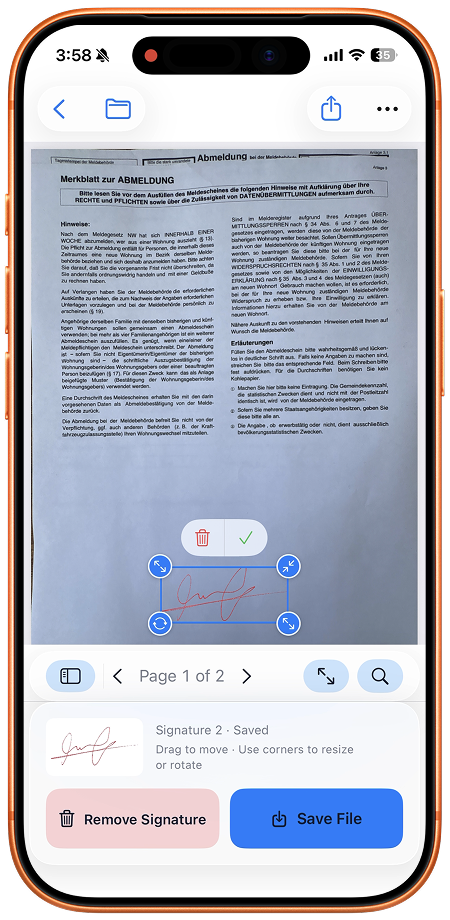
- Select your handwriting again where needed. Check each signature and date against the new answers before saving.
- Save a separate completed copy with a name that distinguishes this revision. Reopen it from Recent Docs.
- Compare the new output with the correction list, then inspect every other page. Choose this checked file when sharing and open the actual attachment before sending.
Example: the wrong workshop session
Suppose the exported application says morning, but you need afternoon. Record that correction, reopen the blank application and enter all required answers again. Select afternoon only where the form asks for the session. In the replacement output, check that morning is no longer selected, afternoon is selected and the participant details and signature are still correct. Checking just the changed box can miss an answer omitted during the restart.
If the earlier copy was already sent, creating another file does not replace that delivered attachment. Tell the recipient which revised file to use through your normal communication channel. Follow the sharing checklist for the new attachment.
Options and limits
Apple Preview on iOS 26 can fill and sign a clean source: open the PDF, select Form Filling, select a field and type. Its tools may be sufficient without an installation. SignDocs is useful when you also want handwriting captured from paper and local PDF processing.
SignDocs requires iOS/iPadOS 26 or later. Free completed exports are limited, including replacement outputs. Processing happens on device without an account or document upload for processing. Installation, purchases/restores, cloud retrieval and external sharing have separate connection requirements. Completed copies are flattened; this method starts again from the source rather than editing existing page text.

Your paper. Your signature.
One signed PDF.
Scan a document, capture your handwriting, and save a signed copy with Signature Scan: Sign PDFs — also known as SignDocs.
 On-device document processing. iPhone and iPad, version 26 or later.
Sources & editorial notes
Prepared by the app’s developer using product documentation, supplied screenshots, and the sources above, with AI assistance for drafting and editing. Screenshots show SignDocs with English interface labels; system menus can vary by OS version or language. This guide does not claim independent hands-on testing.