You can complete supported PDF form fields on iPhone in SignDocs, then save a separate flattened PDF copy. Open the application from Files, enter the answers, review every selection and add handwriting only where required. You do not need to print it. Apple’s Preview on iOS 26 can also fill and sign forms when its tools meet your needs.
Check what kind of form you received
An interactive PDF contains fields you can select. A flat page or scan may look identical but contains only the printed boxes and lines. SignDocs supports standard text, checkbox, radio and choice fields. Their existing positions stay fixed, and read-only fields remain read-only. A box drawn on a page is not proof of an interactive field.
Complete the application
- Download any cloud-only PDF while connected, then open it from Files in SignDocs. Check the title and page count.
- Select an available text field and enter your answer. Review spelling and the last visible characters.
- Complete checkboxes, radio selections and choice lists deliberately. Check that a choice matches the question beside it.
- If the page is flat or scanned, add new multiline text or checkmarks manually in the appropriate spaces. Review line wrapping and overflow; these additions do not change existing page text or create interactive fields.
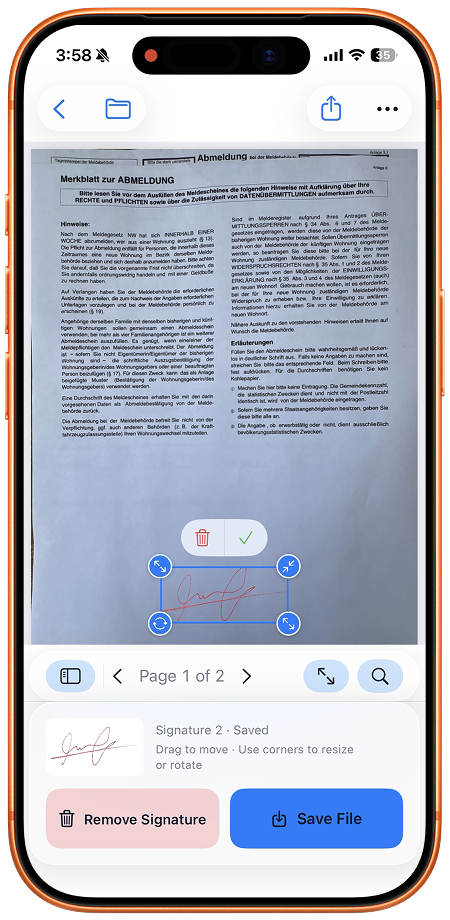
- Select your handwriting for a required signature, then position and resize it without hiding an answer.
- Review all pages and save a separate completed copy. Reopen that output from Recent Docs before sharing it.
An application check
For a workshop application, compare the participant name, session choice and a two-line equipment request separately. Read the end of the second line: a complete answer in the editor can still need a fit check at its final size. Then confirm that the selected session and any signature belong to this application, rather than an earlier draft.
Built-in option and limits
In Apple Preview on iOS 26, open the PDF, select Form Filling, select a field and type. Apple also documents adding a text form box when direct filling is unavailable. You can finish there without installing another app. SignDocs is useful when you also want to capture handwriting from paper and reuse it with your completed application.
SignDocs requires iOS/iPadOS 26 or later. Free exports are limited. The output is flattened; do not expect exported fields to remain interactive. Keep the blank original for another application. Processing happens on device without an account or document upload for processing. Installation, purchases/restores, cloud retrieval and external delivery have separate connection requirements.
Related guides
Capture handwriting · Save and share
Apple: iOS 26 Preview · Signature Scan: Sign PDFs — App Store

Your paper. Your signature.
One signed PDF.
Scan a document, capture your handwriting, and save a signed copy with Signature Scan: Sign PDFs — also known as SignDocs.
 On-device document processing. iPhone and iPad, version 26 or later.
Sources & editorial notes
Prepared by the app’s developer using product documentation, supplied screenshots, and the sources above, with AI assistance for drafting and editing. Screenshots show SignDocs with English interface labels; system menus can vary by OS version or language. This guide does not claim independent hands-on testing.