To create separate PDFs, finish and save the first paper document before scanning the next one. Add more captures only for pages belonging to the current document. In SignDocs, create that PDF, then start a new scanning session for the next document. You can also do this with Apple’s built-in scanners without installing another app.
Sort the paper into documents
Make one pile for each intended file. Count the sides that contain required information, including written backs. Decide the boundary by the document’s purpose and intended recipient, rather than treating every sheet on the desk as one document.
For example, a two-page equipment list and a one-page workshop schedule should produce two PDFs: two pages in the equipment file and one in the schedule file. Keep both pages of the list together. Capturing three pages successfully is not enough if the recipient asked for separate files.
Finish one PDF at a time in SignDocs
- Open document scanning and capture the first page of the equipment list. Use automatic or manual capture as appropriate.
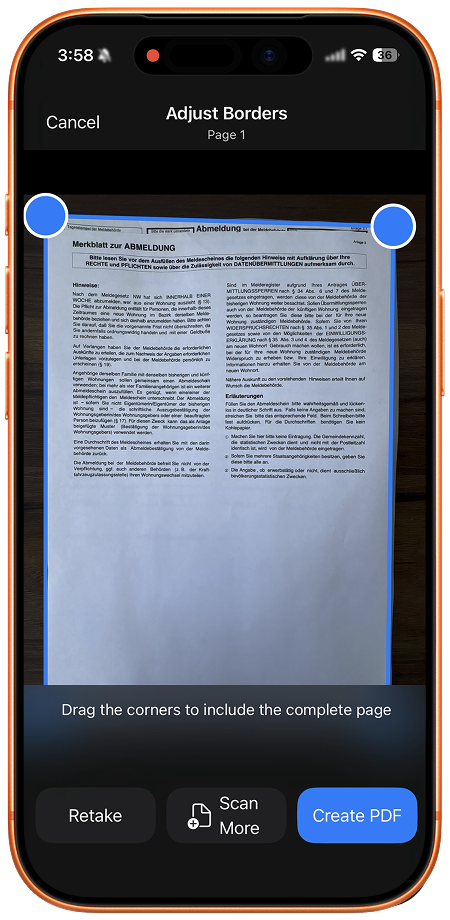
- Inspect focus and page corners. Adjust the crop without cutting off the title or bottom line.
- Use Scan More for the second page of this document only. Check any required reverse sides too.
- When the equipment list is complete, choose Create PDF, inspect its page count and save it with a recognizable name.
- Start a new scan session for the workshop schedule. Finish and save that document separately instead of adding it to the equipment list.
- Reopen both saved PDFs from Recent Docs. Compare each one with its own paper pile before choosing a file to share.
If the recipient wants one combined document instead, follow the multipage scanning guide. Choose the grouping before capturing the whole stack.
Use Notes or Files instead
On iOS 26, Apple’s Notes scanner saves the scan as an attachment in the note selected or created before scanning. Capture only the first document, finish that scan, then begin another scan for the next document. Several attachments may belong to one note; inspect each attachment separately.
In Files, finish the first document’s capture and choose its save location before beginning the next. Use distinct filenames and remember the destination folder. Apple’s scanning instructions cover both built-in options. Another capture before finishing continues the current document.
Check the boundary before sending
Open each PDF and read its first and last pages. For the example, verify two equipment pages, one schedule page and no page from the other pile in either file. Check crop, readable text and missing backs as well. A filename cannot establish which pages are inside.
This workflow begins with physical paper. It does not split an existing PDF or merge existing files. If the whole stack was saved together, return to the paper and create the separate documents deliberately; no SignDocs splitting command is established.
SignDocs is useful when those scans also need handwriting captured from paper and a separate signed PDF copy. Review the exact exported file with the sharing checklist.
Signature Scan: Sign PDFs (SignDocs) requires iOS/iPadOS 26 or later. Free exports are limited, and separate outputs use that limited allowance. Scanning and PDF processing happen on device without an account or processing upload. Installation, purchases/restores, cloud retrieval and external sharing have separate connection requirements.

Your paper. Your signature.
One signed PDF.
Scan a document, capture your handwriting, and save a signed copy with Signature Scan: Sign PDFs — also known as SignDocs.
 On-device document processing. iPhone and iPad, version 26 or later.
Sources & editorial notes
Prepared by the app’s developer using product documentation, supplied screenshots, and the sources above, with AI assistance for drafting and editing. Screenshots show SignDocs with English interface labels; system menus can vary by OS version or language. This guide does not claim independent hands-on testing.